TL;DR
Not the Raspberry Pi AI Camera. This build pairs a Raspberry Pi 5 and the Sixfab AI HAT+ with a standard Camera Module 3. The Raspberry Pi AI Camera (IMX500) is a separate product. See how the two compare.
yolov8n_ppu.dxnn); the non-PPU model measures within about 1%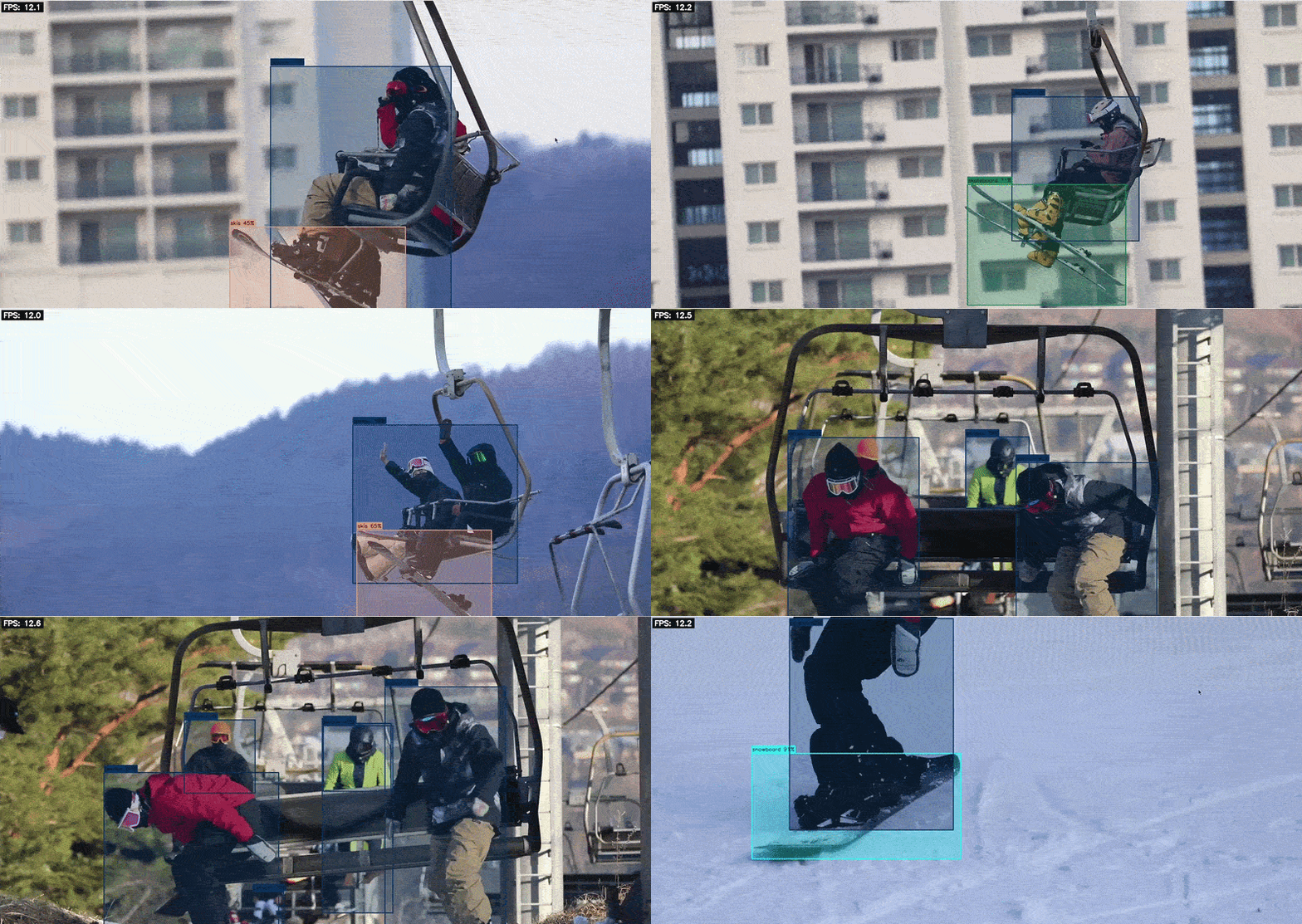
What do you need to build an AI vision camera on Raspberry Pi 5?
For this build, you need a Raspberry Pi 5, the Sixfab AI HAT+, a camera, a microSD card, a power supply and cooling. The Pi 5 with 8 GB of RAM is the recommended configuration.
| Part | Spec | Price | Link |
|---|---|---|---|
| Raspberry Pi 5 | 8 GB recommended | $175 | Raspberry Pi |
| Sixfab AI HAT+ | DEEPX DX-M1M, up to 25 TOPS, 2 GB NPU memory | $95 | Sixfab · EU shop |
| Sixfab AI HAT+ (lower cost option) | DEEPX DX-M1ML, up to 13 TOPS, 1 GB NPU memory, listed for single-camera, single-model use. Listed as available by early 2027 | $63 | Sixfab |
| Camera | Raspberry Pi Camera Module 3 (Sony IMX708, 12 MP). Check that you have a Pi 5 camera cable | From $25 | Raspberry Pi |
| Power supply | Raspberry Pi 27W USB-C Power Supply | $12 | Raspberry Pi |
| microSD card | Official Raspberry Pi SD Card, 32 GB | $24.95 | Raspberry Pi |
| Active Cooler (optional) | The AI HAT+ ships with a passive cooler. The Pi 5 Active Cooler is listed as optional | $5 | Raspberry Pi |
| Case (optional) | Raspberry Pi Case for Raspberry Pi 5, with integrated fan. Mounting a HAT needs stand-offs and GPIO header extenders (not included) | $10 | Raspberry Pi |
| Total | 25 TOPS build, excluding optional cooler and case | Approx. $331.95 |
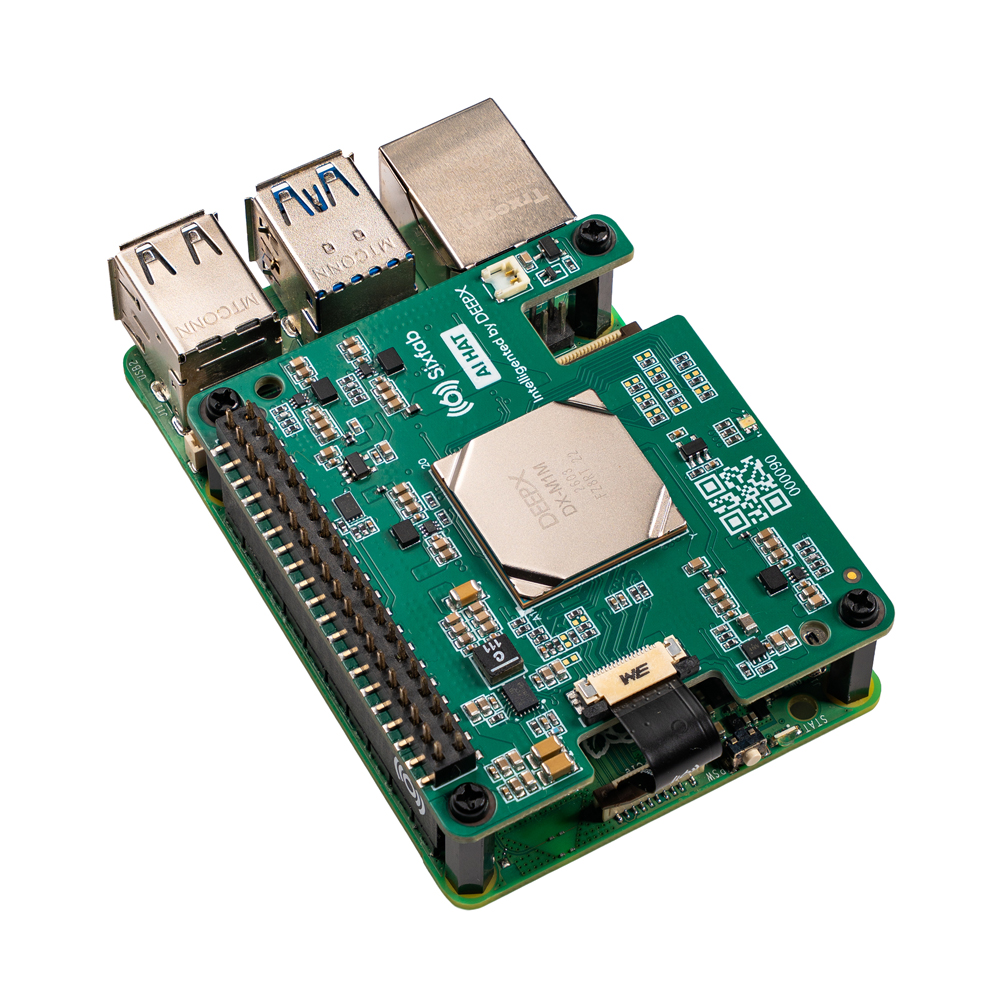
The AI HAT+ box contains the board, a 16-pin PCIe FFC cable, a 16 mm 2×20 stacking header, four M2.5 x 16 mm spacers, eight M2.5 x 5 mm screws and a passive cooler with a thermal pad. It works with the Raspberry Pi 5 only.
A USB webcam also works. Camera Modules connect through libcamera; USB cameras connect through V4L2. This guide uses the Raspberry Pi Camera Module 3, and the USB path is covered in Use a USB webcam instead.
How do you assemble the AI vision camera?
Assemble in this order: power off, fit the cooler to the AI HAT+, connect the camera, mount the AI HAT+ on the Pi 5, then power on. Assembly takes a few minutes and needs no soldering.
Power off first. The AI HAT+ does not support hot-plugging. Shut down and unplug the Pi 5 before you mount it.
How do you install the software?
Flash Raspberry Pi OS 64-bit, add the Sixfab APT repository, install sixfab-dx, and confirm the NPU is detected. The AI HAT+ lists Raspberry Pi OS (Trixie) as its supported host OS.
Flash and update Raspberry Pi OS
Use the Raspberry Pi Imager to flash Raspberry Pi OS 64-bit (Trixie) to the microSD card, or use a card with the OS preinstalled. After first boot:
sudo apt update && sudo apt upgrade -y
sudo apt install -y build-essential cmake git python3 python3-pip python3-dev python3-venv curlAdd the Sixfab APT repository
sudo apt update && sudo apt install apt-repo-sixfab
If apt reports Unable to locate package apt-repo-sixfab, download and install the package directly:
wget https://github.com/sixfab/sixfab_dx/releases/download/v0.1/apt-repo-sixfab.deb
sudo dpkg -i apt-repo-sixfab.debInstall the runtime
sudo apt update && sudo apt install sixfab-dx
This installs the DEEPX runtime, the Python wheels and a pre-configured virtual environment at /opt/sixfab-dx/venv.
PCIe Gen 3 (nothing to do on the AI HAT+)
With the Sixfab AI HAT+, PCIe Gen 3 is enabled automatically through the HAT+ EEPROM. You do not need to edit config.txt.
Using a different M.2 setup? Enable Gen 3 manually.
If your DX-M1 is not on an AI HAT+, add these two lines to /boot/firmware/config.txt and reboot:
dtparam=pciex1
dtparam=pciex1_gen=3Verify the NPU
dxrt-cli -sExpected output:
pi@pi:~ $ dxrt-cli -s
DXRT v3.x.x
=======================================================
 * Device 0: M1M, Accelerator type
---------------------   Version   ---------------------
 * RT Driver version   : v2.x.x
 * PCIe Driver version : v2.x.x
-------------------------------------------------------
 * FW version          : v2.x.x
--------------------- Device Info ---------------------
 * Memory : LPDDR4 4200 Mbps, 1.92GiB
 * Board  : M.2, Rev 0.0
 * Chip Offset : 1
 * PCIe   : Gen3 X1 [01:00:00]
NPU 0: voltage 750 mV, clock 1000 MHz, temperature 37'C
NPU 1: voltage 750 mV, clock 1000 MHz, temperature 37'C
NPU 2: voltage 750 mV, clock 1000 MHz, temperature 37'C
=======================================================Get the code and models
git clone https://github.com/sixfab/sixfab-dx-examples.git
cd sixfab-dx-examples
./auto-install.sh
source /opt/sixfab-dx/venv/bin/activate
auto-install.sh checks that the runtime works, downloads models and sample media from the GitHub release into resources/, installs the Python dependencies and builds the C++ demos. Run source /opt/sixfab-dx/venv/bin/activate at the start of every new session.
How do you run object detection on the camera?
Set the input source to rpicam and run the YOLOv8 demo. Install the camera library first if it is missing:
sudo apt install -y python3-picamera2Edit python_examples/config.yml:
global:
  input_source: "rpicam"
  show_fps: true
  confidence_threshold: 0.5
  iou_threshold: 0.45
demos:
  yolov8:
    model_path: "../resources/models/YoloV8N.dxnn"
Launch the demo menu and pick YOLOv8:
bash python_examples/start.sh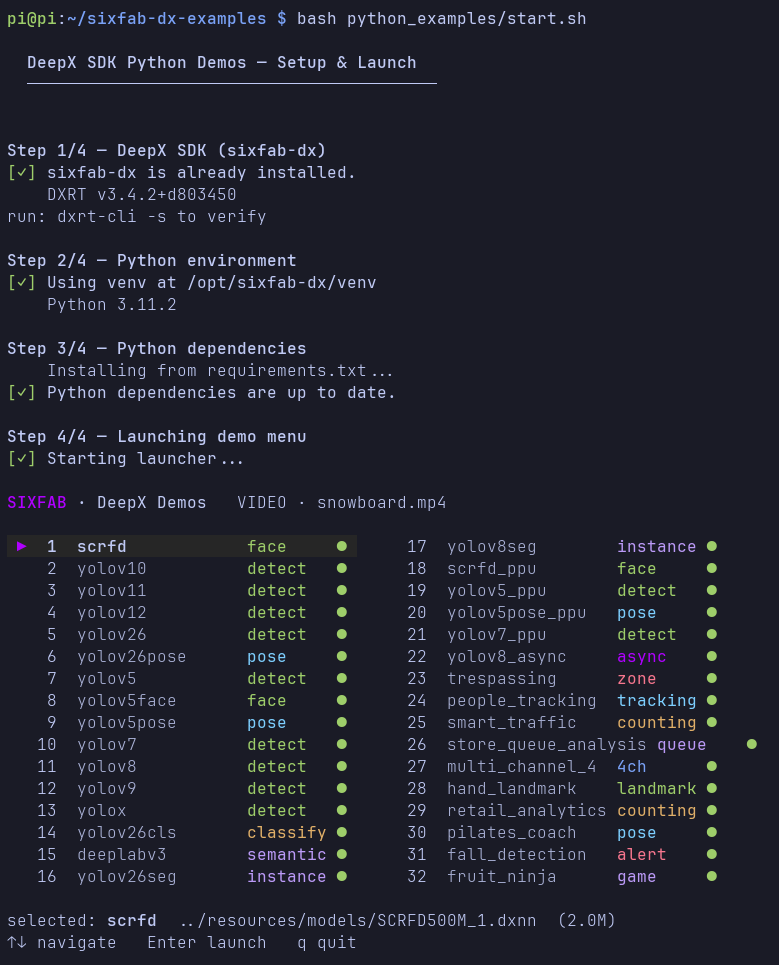
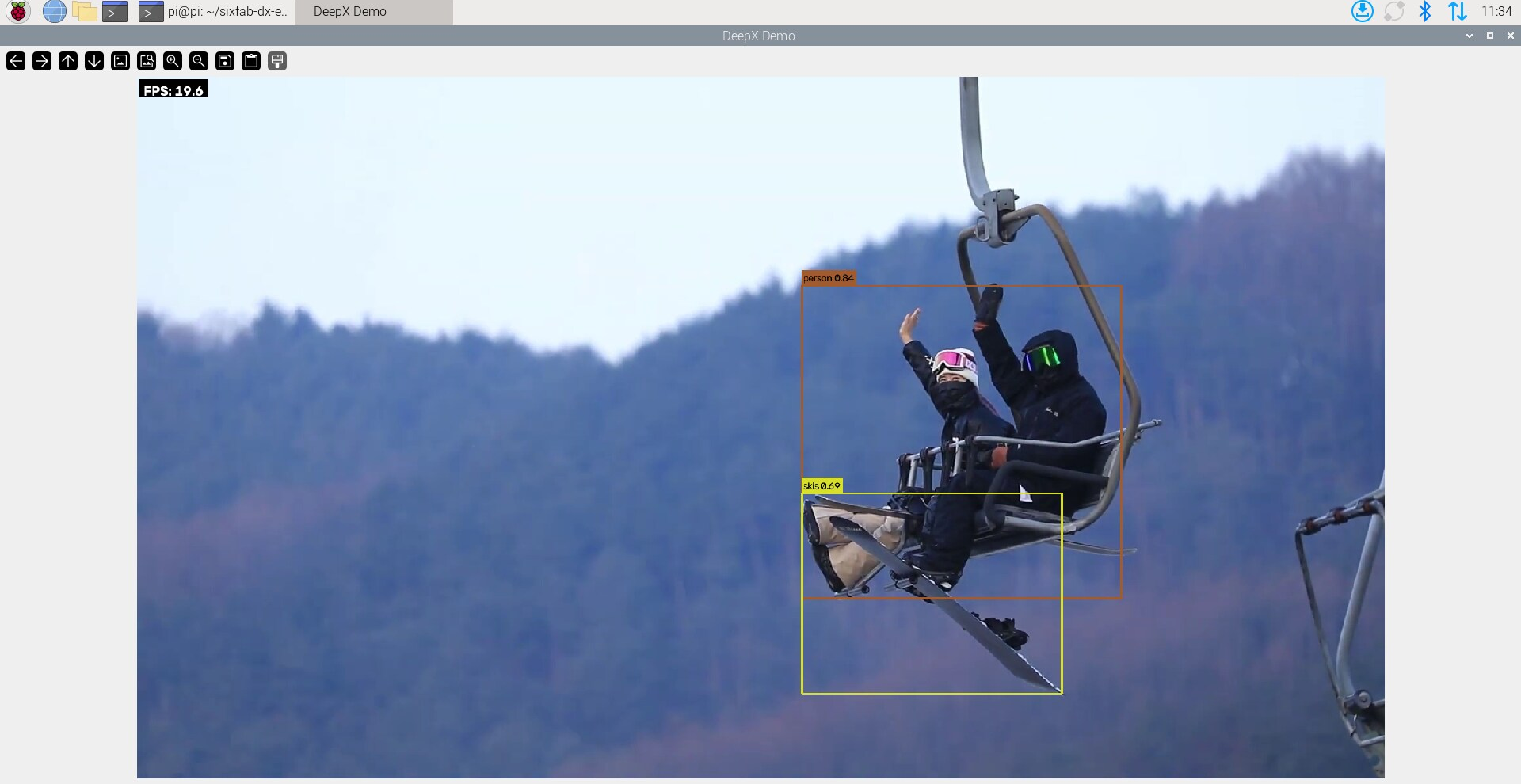
Expected result: a window with live video, bounding boxes with class labels, and an FPS counter.
Run the C++ version
The C++ demo takes the camera as a flag, in index:width:height:fps format:
./cpp_examples/build/object_detection/yolov8_demo --source libcamera --path 0:1280:720:30
Without a path, it defaults to 1536×864 at 30 fps. If you see libcamera support not compiled in, rebuild with libcamera enabled:
cd cpp_examples/build
cmake .. -DENABLE_LIBCAMERA=ON && make -j$(nproc)
Use a USB webcam instead
Set input_source: "webcam" and webcam_index: 0 in config.yml. If the camera is not found, run ls /dev/video* and try index 1 or 2.
How fast is a Raspberry Pi 5 AI vision camera with the Sixfab AI HAT+?
This build reaches 18.6 FPS end to end with YOLOv8n in our measurement. The NPU alone can run YOLOv8n at 434 FPS in DEEPX’s own test, but a single camera stream reaches a fraction of that, because capture, CPU pre- and post-processing, drawing and display all take time on every frame. Both numbers matter, so this section shows both and labels each.
NPU FPS from the DEEPX model zoo
These are NPU FPS figures, not end-to-end FPS on a Raspberry Pi.
DEEPX measured them on a DX-M1 M.2 module in a desktop host (Intel Core i5-14600K, 32 GB RAM) with dx-com v2.4.0 and dx-rt v3.4.0, using dxrun -m <MODEL_FILE> --use-ort -t 5 -b. DEEPX notes that results vary with hardware configuration. Source:
DEEPX model zoo
| Model | Input | NPU FPS (DEEPX model zoo) |
|---|---|---|
YOLOv8n (YOLOV8N-1) | 640×640 | 434 |
YOLOv8n, PPU (YOLOV8N-2) | 640×640 | 190 |
YOLOv5s (YOLOV5S-1) | 640×640 | 324 |
YOLOv5s, PPU (YOLOV5S-12) | 640×640 | 426 |
YOLO11n (YOLOV11N-1) | 640×640 | 391 |
YOLOv10n (YOLOV10N-1) | 640×640 | 358 |
YOLO26n (yolo26n-1) | 640×640 | 321 |
SCRFD-500M, face detection (SCRFD500M-1) | 640×640 | 544 |
What a Raspberry Pi 5 reaches
Sixfab’s own benchmark on a Raspberry Pi 5 (8 GB) with the 25 TOPS DX-M1M measured both views on the same models. The NPU-only figure is the async throughput with 8 requests in flight. The end-to-end figure is a single request, from video decode to parsed output.
| Model | NPU-only (async) FPS | End-to-end (single stream) FPS |
|---|---|---|
| YOLO26n | 178.7 | 13.7 |
| YOLOv8l | 50.1 | 11.2 |
Source: Raspberry Pi 5 AI HAT benchmark: DEEPX vs Hailo , DEEPX SDK 3.3.2, 640×640 input, one video clip.
Two things follow. First, the Pi 5 NPU result for YOLO26n (178.7) sits below the model zoo figure for the same model (321), as expected for a different host and link. Second, end-to-end numbers for a single stream land in the teens, not in the hundreds. The measurement on this build, below, is 18.6 FPS.
Measured on this build
On a Raspberry Pi 5 with the Sixfab AI HAT+ and a Camera Module 3, YOLOv8n with PPU support runs at 18.6 FPS end to end, averaged over 855 frames in 45.9 seconds. The same model without PPU support measures within about 1% of that.
| Model | End-to-end FPS |
|---|---|
YOLOv8n with PPU (yolov8n_ppu.dxnn) | 18.6 |
| YOLOv8n without PPU | within about 1% of 18.6 |
The demo times each step of the pipeline. The table below is the summary it printed for the PPU run:
| Pipeline step | Average latency | Throughput |
|---|---|---|
| Read | 6.37 ms | 156.9 FPS |
| Preprocess | 2.29 ms | 436.2 FPS |
| Inference | 20.20 ms | 49.5 FPS |
| Postprocess | 0.04 ms | 27,642.4 FPS |
| Render | 3.15 ms | 317.8 FPS |
| Display | 21.62 ms | 46.3 FPS |
| Overall | 53.8 ms per frame | 18.6 FPS |
The steps run one after another for each frame, so their latencies add up: 53.7 ms across the six steps, in line with the 53.8 ms measured overall, which is 18.6 FPS. Display (21.62 ms) and Inference (20.20 ms) are the two largest steps. The Inference step times one frame at a time, so it is not comparable with the model zoo’s NPU throughput figure, which keeps the NPU busy with queued requests.
Methodology: Raspberry Pi 5, Sixfab AI HAT+ (DX-M1M), Camera Module 3, 855 frames in 45.9 seconds, per-step timing from the demo’s built-in performance summary.
Another measured data point from the repository
On 2026-10-06, the pose-estimation app’s engine (yolov8n-pose.dxnn) was benchmarked headless on a Raspberry Pi 5 (Debian 13, Python 3.13.5, DEEPX DX-M1M, DXRT v3.4.2) against video clips. The full loop reached 32.1 to 32.3 FPS on a 1920×1080 clip with about 4 people per frame, and 36.0 to 37.6 FPS on an 898×506 clip. Each figure is the range over three runs, after 30 warm-up frames and 300 timed frames. Live camera capture was not part of that test, and it is a pose model, not YOLOv8n detection.
Troubleshooting
dxrt-cli -s does not list the NPU
Check whether the kernel module loaded, then look at the driver log and the runtime service:
lsmod | grep dx
dmesg | grep -i dx
sudo journalctl -u dxrtd
If the module is missing, try sudo modprobe dx_npu. Power off and check that the PCIe FFC cable is seated, since the HAT+ does not support hot-plugging.
The camera is not found
ls /dev/video*
rpicam-hello --list-cameras
For a Camera Module, enable the interface in sudo raspi-config. For a USB webcam, change webcam_index in config.yml.
ImportError: No module named 'dxrt'
The Sixfab virtual environment is not active. Run source /opt/sixfab-dx/venv/bin/activate, or start through start.sh, which activates it for you.
auto-install.sh says the DEEPX NPU runtime is not installed
Install sixfab-dx with the APT steps above before running auto-install.sh. The script does not install the runtime itself.
Unable to locate package apt-repo-sixfab
Install the package from the .deb file shown in Step 2, then run sudo apt update again.
libcamera support not compiled in (C++ demos)
Rebuild with -DENABLE_LIBCAMERA=ON, as shown above. This needs OpenCV built with GStreamer.
A demo shows a red dot in the launcher
The model file is missing at the configured path. Check ls -lah models/ and fix model_path in config.yml.
FPS is lower than the model zoo numbers
That is expected: the model zoo figures are NPU-only. For end-to-end speed, try a PPU model variant of whichever model you use, for example yolov11n-ppu instead of yolov11n. PPU variants move part of the CPU workload onto the NPU, which leaves the CPU more headroom. The gain depends on the model: on YOLOv8n the end-to-end difference is about 1%, while the other models we tested run noticeably faster. Also close other processes and use the async demo.
If FPS drops during long runs, check the NPU temperature. Thermal throttling starts once the NPU reaches 80 °C, and FPS drops from that point on. Run dxrt-cli -s to read the current temperature of each NPU. With the passive cooler included in the AI HAT+ box, we saw no thermal throttling, even on the heaviest models we tested.
What can you build next?
Count people
Count people with a heatmap: the retail-analytics app in the same repo.
Pose estimation
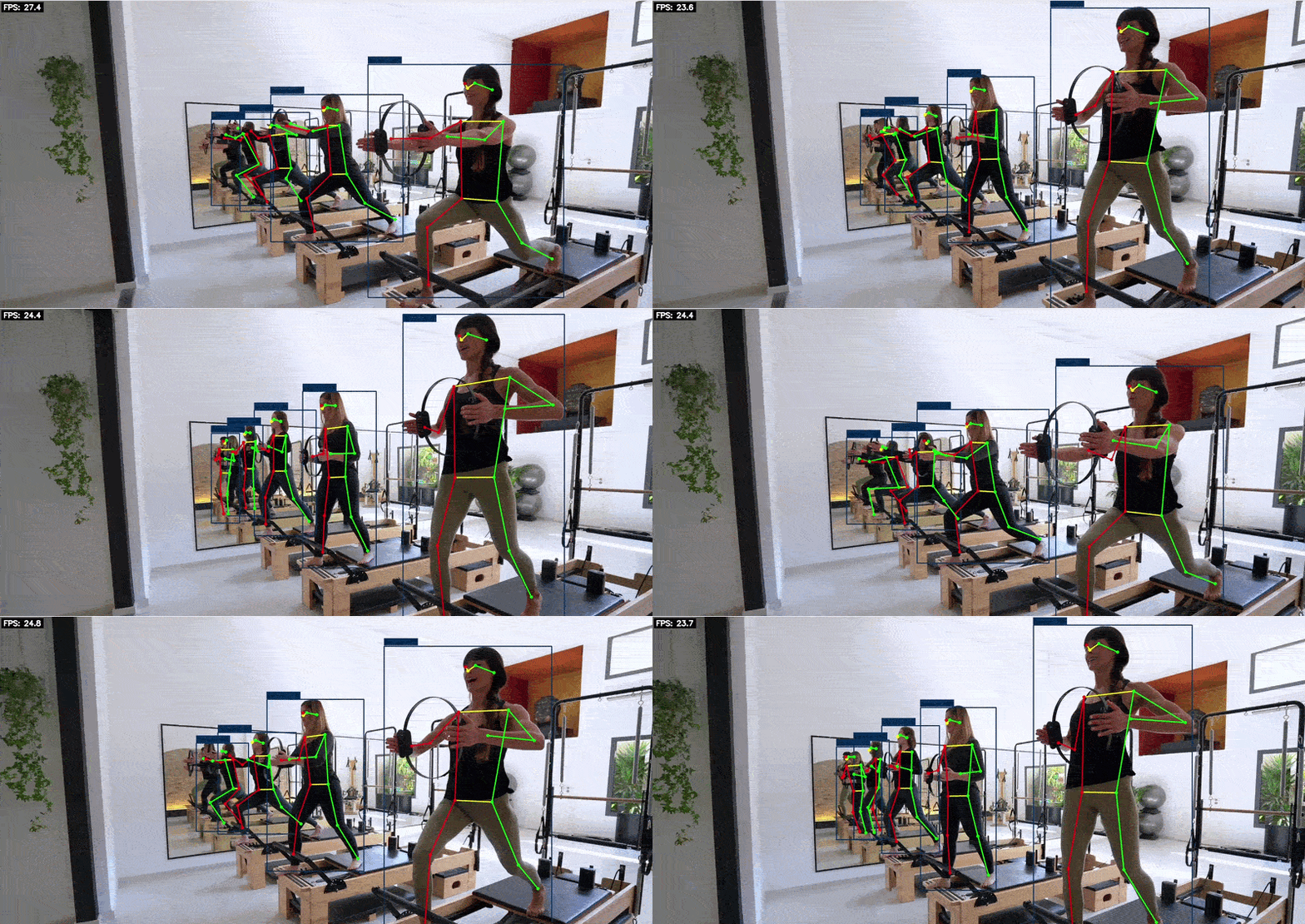
Detect falls and coach exercise from the camera: the pose-estimation app.
Run a full NVR
Run a full NVR with alerts: the Frigate-based projects in sixfab-dx-frigate (doorbell, porch pirate, bird ID).
Frequently asked questions
What is an AI vision camera on Raspberry Pi 5?
It is a Raspberry Pi 5 with a camera and an AI accelerator that runs neural network models on the device. In this build, the accelerator is the Sixfab AI HAT+ with a DEEPX DX-M1 NPU rated at up to 25 TOPS, and the camera is a Camera Module 3. It is not the Raspberry Pi AI Camera (IMX500), which runs models on the camera sensor itself.
How much does this build cost?
The Sixfab AI HAT+ costs $95 for the 25 TOPS version and $63 for the 13 TOPS version. With Raspberry Pi list prices for the other parts, the 25 TOPS build is approximately $331.95 excluding the optional Active Cooler and case.
Does this build need the internet?
No. Inference runs on the NPU in the HAT, so detection works offline. The internet is only needed for the one-time install and model download.
Do I need to enable PCIe Gen 3 on the Sixfab AI HAT+?
No. The AI HAT+ enables PCIe Gen 3 automatically through its HAT+ EEPROM. Manual config.txt changes are only needed for other M.2 setups.
Which camera works with the Sixfab AI HAT+?
The repository supports Raspberry Pi Camera Modules through libcamera, USB webcams, video files, single images and RTSP streams. This guide was built and measured with the Raspberry Pi Camera Module 3.
How fast is YOLOv8n on a Raspberry Pi 5 with the Sixfab AI HAT+?
On a Raspberry Pi 5 with the Sixfab AI HAT+ and a Camera Module 3, YOLOv8n runs at 18.6 FPS end to end, including capture, preprocessing, inference, postprocessing, drawing and display. The DEEPX model zoo lists 434 FPS for YOLOv8n at 640×640, which is NPU-only and not end-to-end on a Raspberry Pi.
What is the difference between the 13 TOPS and 25 TOPS AI HAT+?
Both are the same board with a different DEEPX chip: the DX-M1ML (13 TOPS, 1 GB NPU memory) for single-camera, single-model use, and the DX-M1M (25 TOPS, 2 GB NPU memory) for multi-model or multi-camera use. The 13 TOPS version is listed as available by early 2027.
Can I run other models, such as pose estimation or segmentation?
Yes. The same repository has 28 Python demos and 26 C++ demos, covering object detection, pose estimation, segmentation, classification and face detection.
How is this different from the Raspberry Pi AI Camera (IMX500)?
The Raspberry Pi AI Camera runs a small neural network on the camera sensor itself, while this build runs the model on an external NPU, the Sixfab AI HAT+, and works with any camera. They solve different problems, so the right choice depends on your model size and your camera.
| Raspberry Pi AI Camera (IMX500) | Raspberry Pi 5 + Sixfab AI HAT+ (this build) | |
|---|---|---|
| Where the model runs | On the Sony IMX500 sensor inside the camera | On the DEEPX DX-M1 NPU on the HAT+, over PCIe |
| Model memory | About 8 MB, shared with firmware and working memory | 2 GB NPU memory (DX-M1M, 25 TOPS); 1 GB on the 13 TOPS version |
| Precision | INT8 | INT8 |
| Camera | The IMX500 module only (12.3 MP) | Camera Module 3, USB webcams, RTSP streams or video files |
| Compatible hosts | Raspberry Pi models with a CSI port | Raspberry Pi 5 only |
| Price | $70 | $95 for the 25 TOPS HAT+, plus a camera |
| Model workflow | Convert and package with Sony’s tools; the packaging step runs on a Raspberry Pi | Compile ONNX models to DXNN with DX-COM; the repository ships ready-to-run models |
The IMX500 keeps its firmware, model and working memory inside about 8 MB, so it suits compact networks. A hands-on review lists input sizes of up to 640×640, and as low as 224×224 for heavier networks. The HAT+ has its own 2 GB of NPU memory, so models are not held to that 8 MB budget, and this build runs YOLOv8n at 640×640.
We do not compare frame rates head to head, because the two use different models and pipelines. Raspberry Pi’s documentation does not publish IMX500 inference benchmarks, and independent testing reports MobileNet SSD and PoseNet running at around 30 fps. For this build, YOLOv8n at 640×640 measures 18.6 FPS end to end, including display, and 434 FPS NPU-only in the DEEPX model zoo.
Choose the IMX500 if you want the smallest setup: one $70 module, a compact model such as MobileNet SSD, and any Raspberry Pi with a CSI port.
Choose the Sixfab AI HAT+ if you need YOLO-class models at 640×640, larger or multiple models, or your own camera source such as a USB webcam or an RTSP stream.
Code and resources
Build it on the Pi 5
The code, runtime, models, documentation and measured performance data for this build are all linked above.